Creating Projects
Creating a project in ViZual™ is simple and fast.
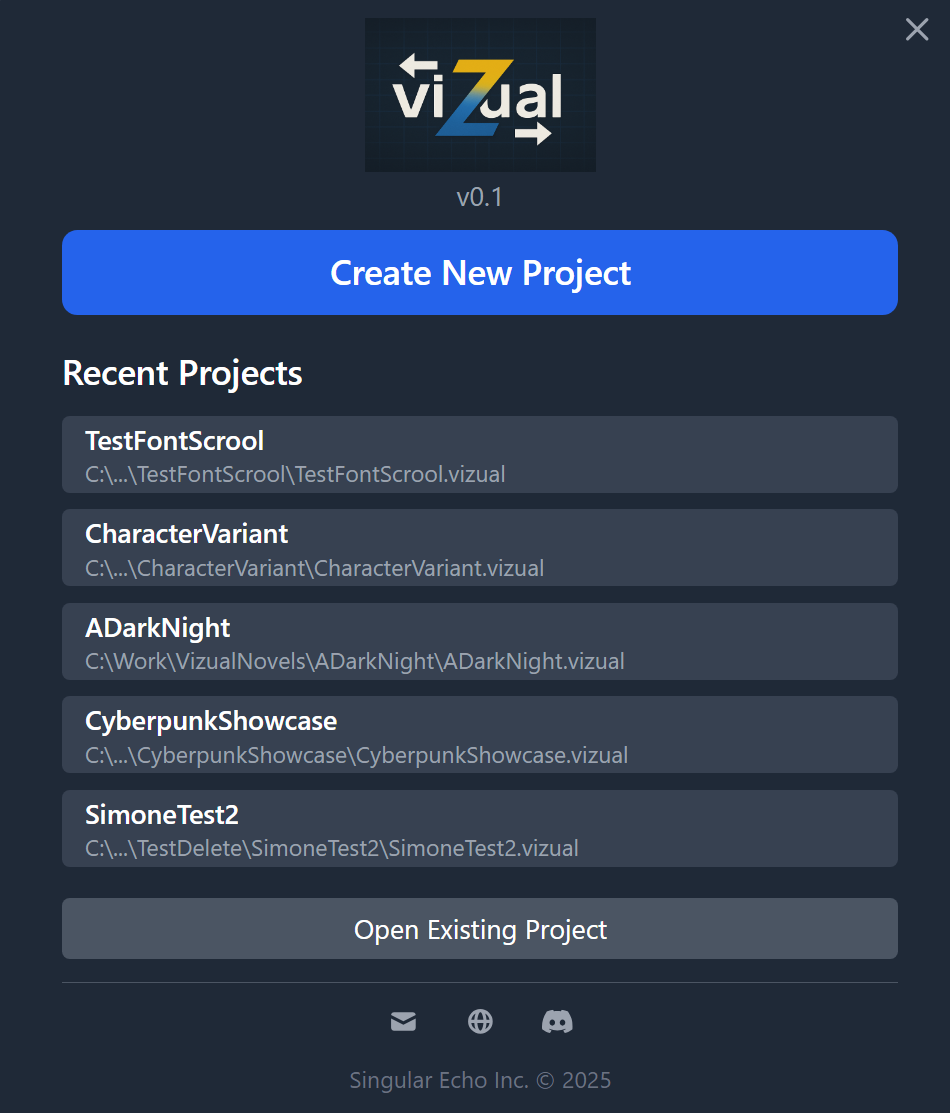
When you start the app, the splash screen will let you create a new project right away.
If you already have existing projects, your most recent ones will appear in the list.
Click the big blue button to get started!
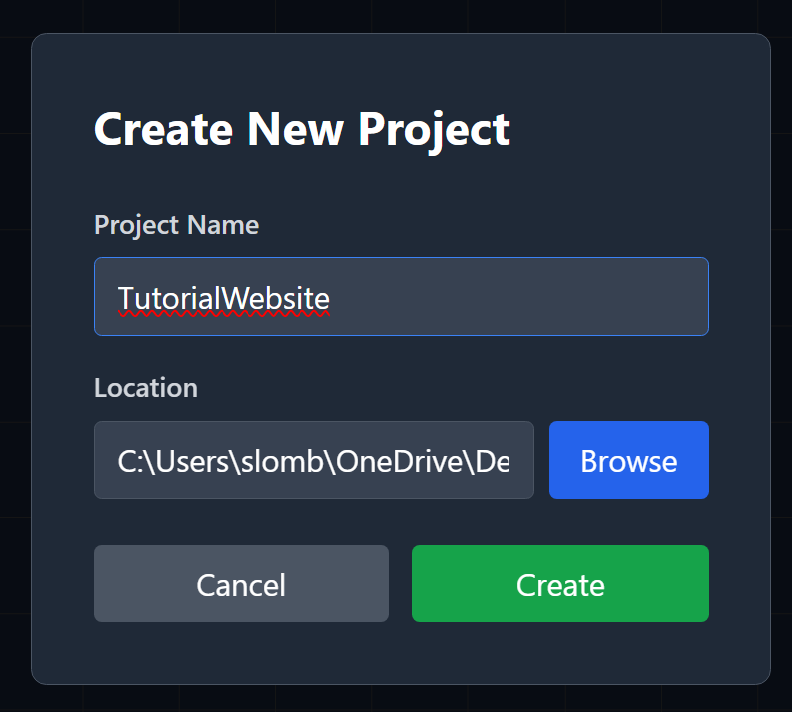
If you’re already inside a project, you can also create a new one using the New button on the top toolbar.

Both methods open the same setup window — just choose your desired location and enter a project name to begin.
Project Structure
Once a new project is created in ViZual, it automatically setup all the folder structure and files that are needed for the app to function.
DirectoryProjectName/
DirectoryAssets/ this is where all assets need to be stored for the project
- …
DirectoryExport/ where all exports will be stored by default (this can be changed)
- …
DirectoryModules/ only created if at least one module is enabled
- …
- ProjectName.vizual (the main project file)
All assets must be stored inside the Assets folder.
If you place files elsewhere, they won’t be packaged correctly, and your export will fail.
Don’t worry, though — ViZual will detect this automatically.
If you try to use a file located outside the Assets folder, ViZual will prompt you to confirm whether you’d like it to copy the file into the correct folder and use that copy instead.
ViZual™ and Singular Echo™ are trademarks of Singular Echo Inc.