Project Settings
The Project Settings control all global parameters that affect your entire project.
Here you can adjust features such as typewriter effects, splash screen, menu options, font size, and more.
These settings can be accessed by selecting the Start Node in the Grid View.
Layouts
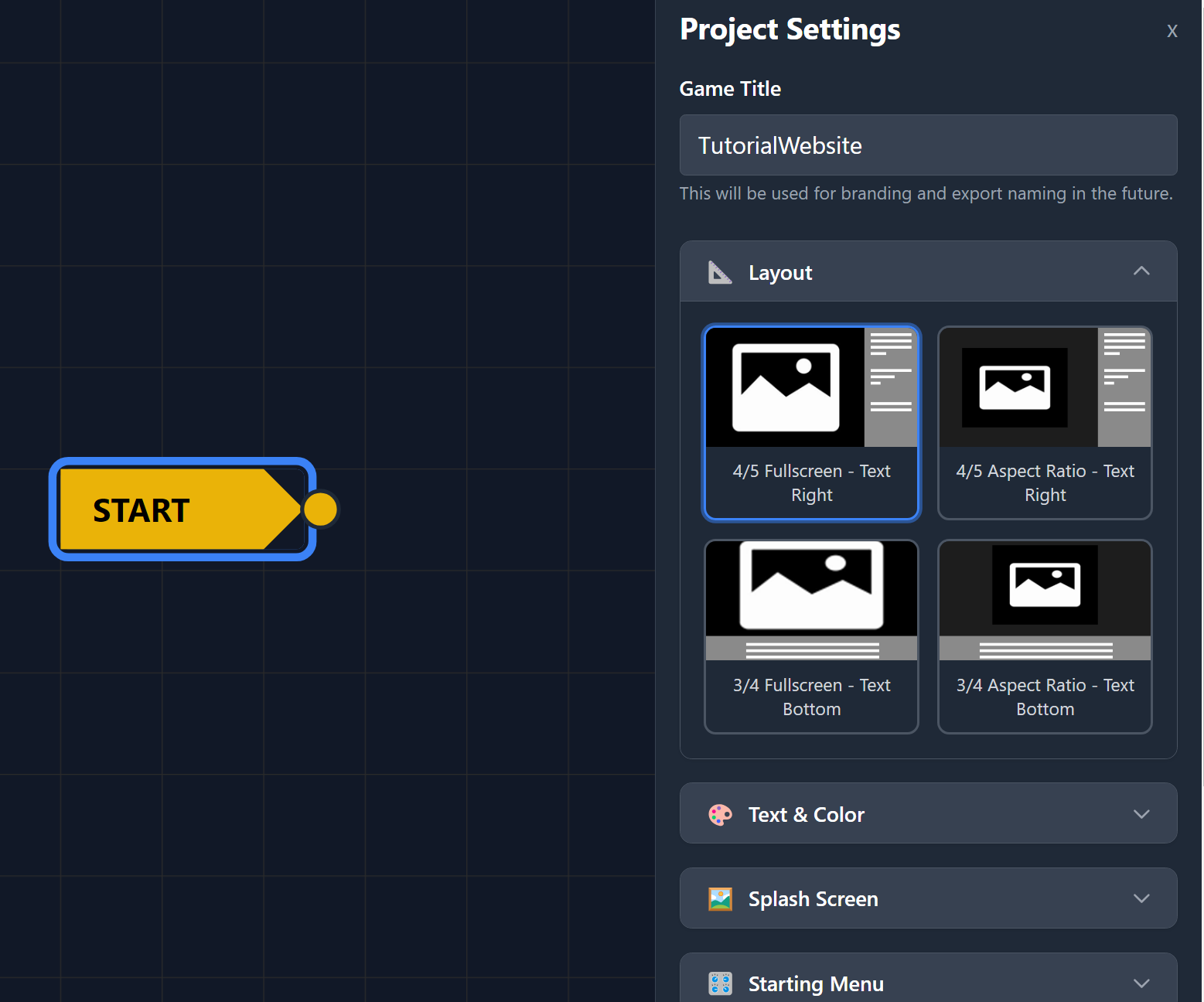
Layouts define the overall visual presentation of your project.
As of version 0.1-Alpha, ViZual includes four built-in layout templates.
Each layout is based on two main parameters:
- Text Orientation — either vertical (text beside the image) or horizontal (text below the image).
- Background Style — either full screen or aspect-ratio-based.
- The aspect-ratio version allows for background animation and transition effects, configurable from the StoryTile Details Panel.
In short:
You can combine vertical or horizontal text placement with either a full-screen or aspect-ratio background — giving you four flexible layout options to match the tone and style of your story.
Text And Color
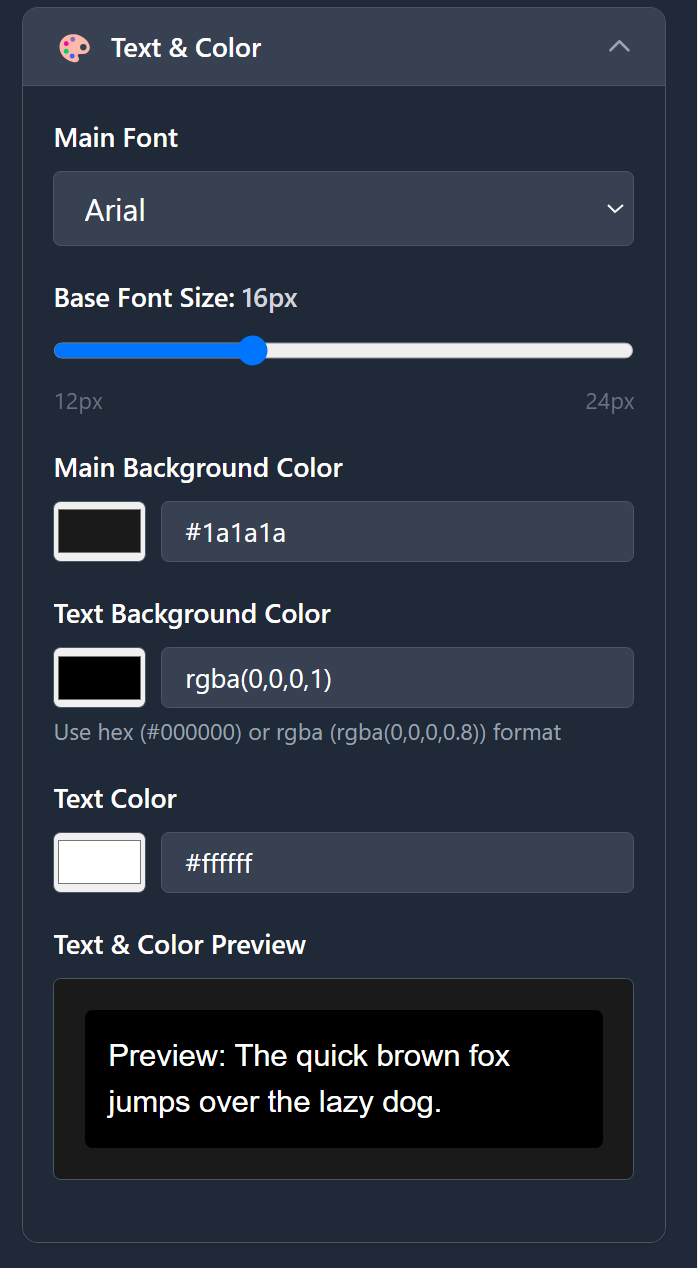
This section allows you to adjust the text container background color (including opacity), as well as the font type, size, color, and the overall application background color.
A small preview window is available to help you visualize how your settings will look in real time.
Keep in mind that the finished version of ViZual will include an option for users to adjust the font size dynamically, allowing them to customize readability to their preference.
Splash Screen
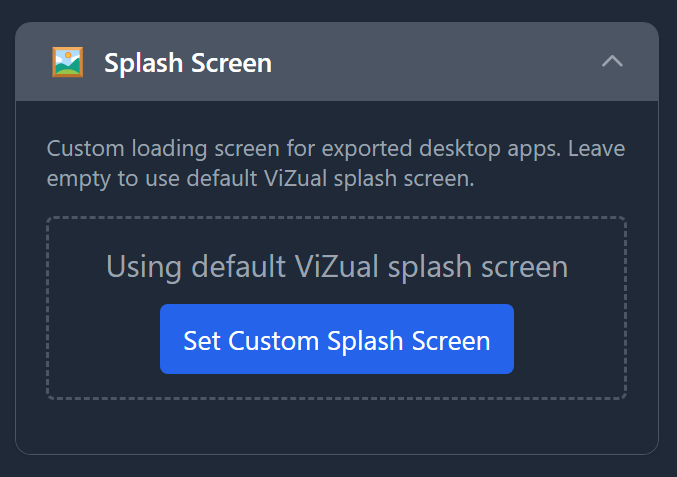
This is where you can select an image to use as the Splash Screen for your exported desktop app (Windows, Mac, or Linux).
If no image is set, the default ViZual Splash Screen will be used.
Recommended resolution: 1536×1024
Supported formats: .jpg or .png
(Animated GIFs are not supported.)
Starting menu
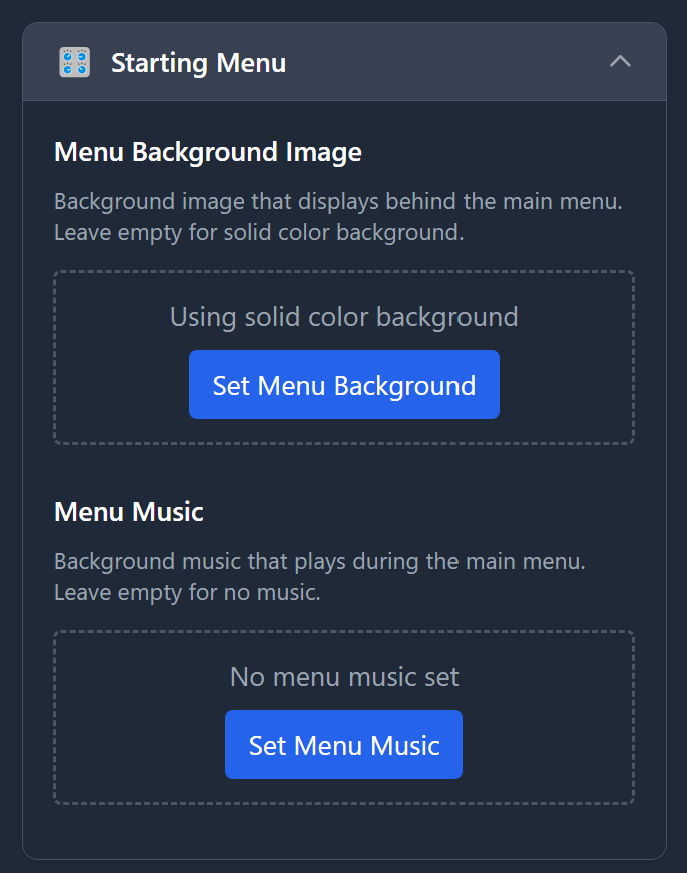
These options allow you to override the starting menu background and music, enabling you to implement your own custom setup.
If no background image or video is selected, the menu background will default to the color defined in the Font and Color options.
Global Settings
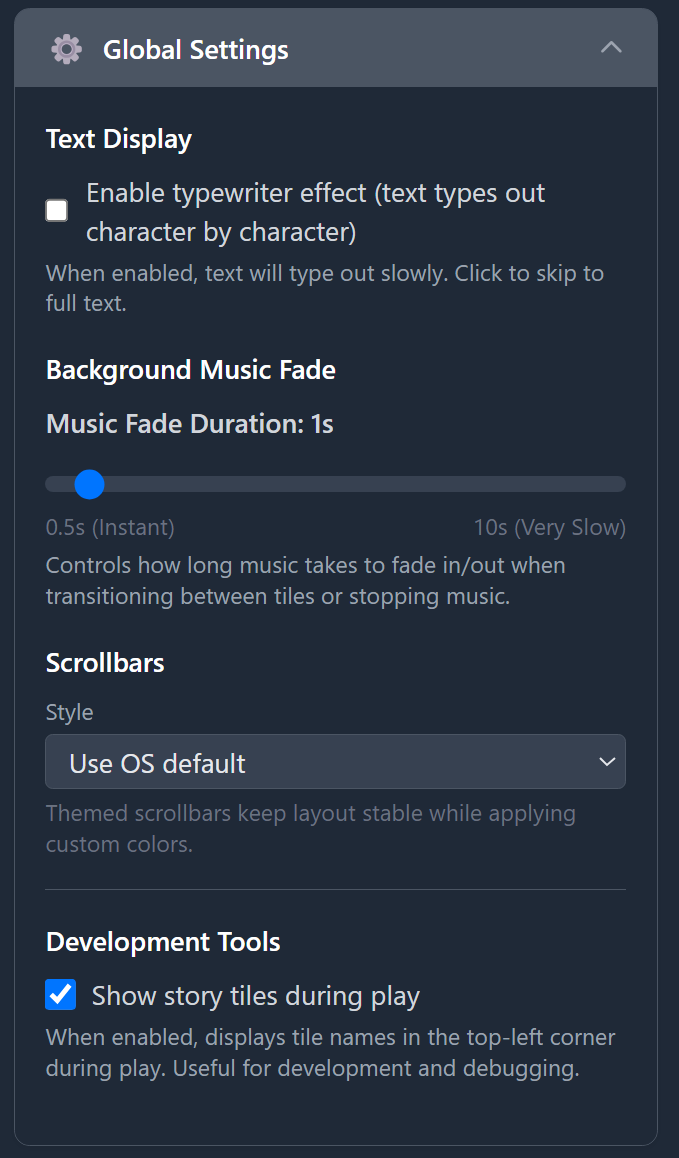
These are global settings that control general parameters across your project.
-
Typewriter — When enabled, text within each StoryTile will appear character by character, simulating a typewriter effect.
Once active, an additional speed multiplier setting becomes available.
Note: If a voice-over is used, the typewriter speed will automatically match the length of the audio file.
Clicking anywhere in the app will skip the animation and instantly display the full text. -
Background Music Fade — Sets the default fade duration (in seconds) for background music when it changes or stops between StoryTiles. See Story Tile Audio for more info.
-
Scroll Bar — Choose between OS Default or ViZual Themed styles.
• OS Default: Uses the system’s native scrollbar.
• ViZual Themed: Unlocks options for color, thumb opacity, and width, overriding the default system scrollbar. -
Show StoryTile During Play — When enabled, displays the StoryTile Name in the top-left corner of the viewport during playback.
ViZual™ and Singular Echo™ are trademarks of Singular Echo Inc.