Modules Overview
The real strength of ViZual™ lies in its Modular Architecture.
ViZual can be easily expanded through Modules, which can be enabled or disabled on the fly — no restart required.
Each Module brings powerful new features and tools to ViZual.
Modules are completely separate from the core application.
When you enable a Module, it’s automatically copied into your Project folder — and when you disable it, it’s removed just as cleanly.
Modules can unlock a wide range of functionality, such as:
- Creating an Inventory System
- Adding Save/Load features
- Introducing advanced Character Templates with new layering and animation systems
- Enhancing the editor itself (for example, adding Gen-AI options inside StoryTiles)
Best of all, Modules can be created and shared by you — the user!
You’ll even be able to sell them in the upcoming Module Library (release date TBD).
Creating Modules is simple thanks to the built-in Module Creator Tool.
It uses a node-based system, meaning you won’t need to write a single line of code.
If you can visualize it, you can build it!
How to Access Modules
To enable or disable Modules, click the Module button in the top toolbar.

Built-in Modules (as of v0.1-alpha)
These Modules are shipped with the app, they are disabled by default.
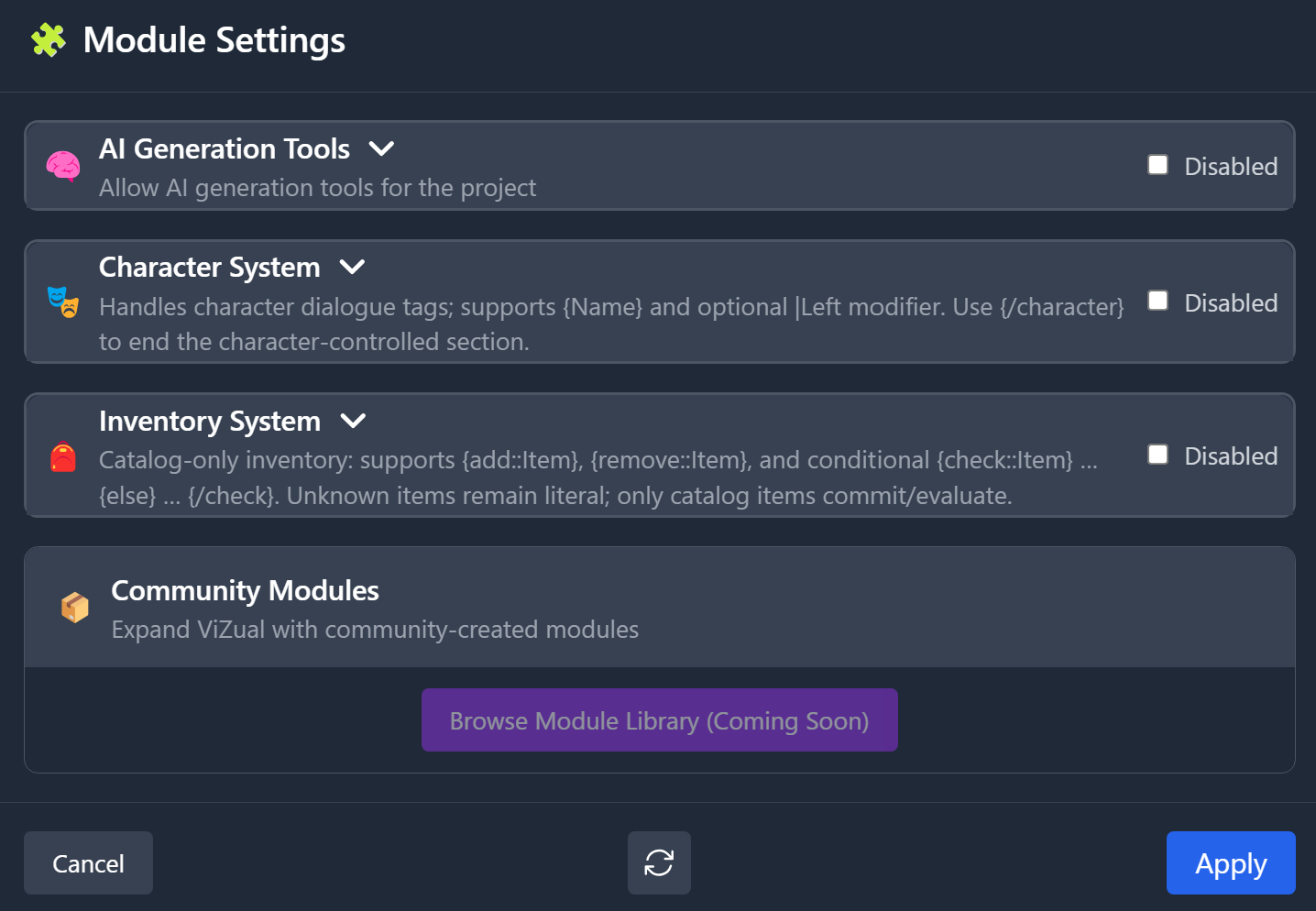
For more specific info for each of them please see link below (or use the sidebar)
How to Enable Modules
By default, all Projects are created with Modules disabled.
You can expand each Module to view detailed information and an overview of what it does.

Once a Module is enabled, all its related settings become fully accessible.
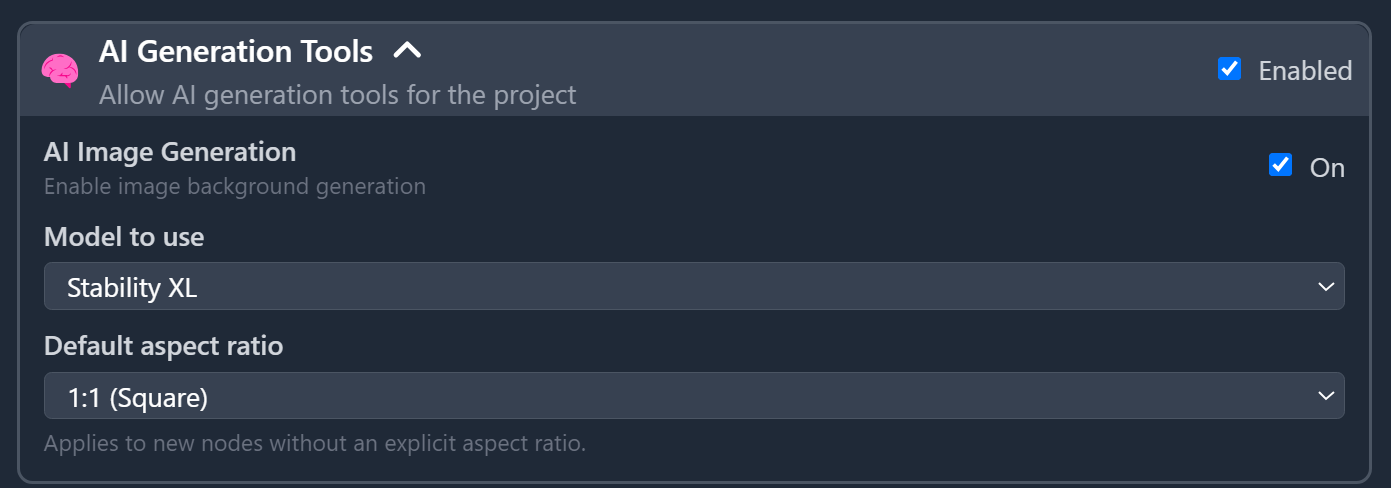
For detailed configuration and usage, refer to the documentation of each Module.
How to Create Modules
TBD — Coming Post-AlphaViZual™ and Singular Echo™ are trademarks of Singular Echo Inc.