
StoryTile Visual
The Visual section of your StoryTile determines how everything will look when the user reaches that point in your story.
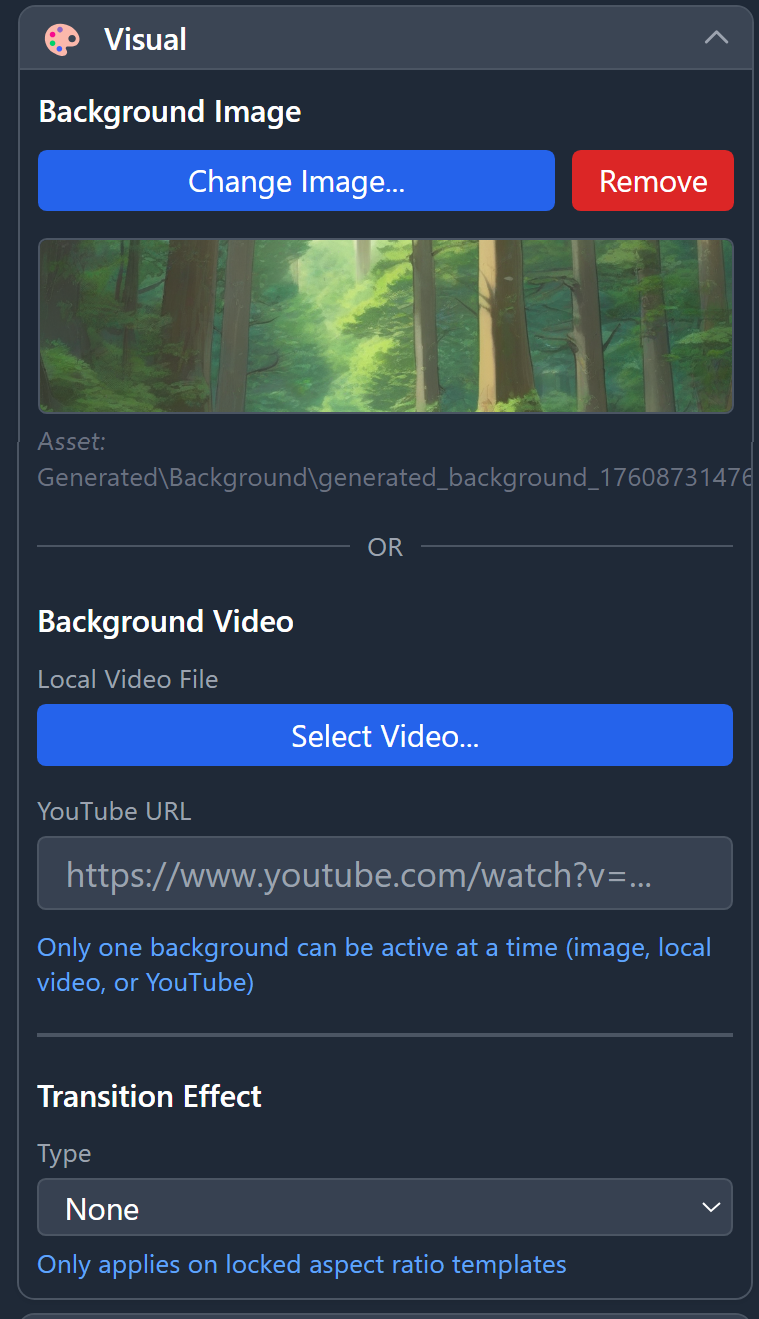
The Background Image field lets you select the image for that StoryTile (animated GIFs are fully supported).
Clicking Remove will clear the selected background.
All assets must be stored inside the Assets Folder, or ViZual™ will not package them.
Don’t worry — if you select a file outside the project’s Assets Folder, ViZual will detect it and prompt you to copy it to the correct location automatically.
(For more infos please check Project Structure)
Each StoryTile supports one background at a time (though some Modules may expand this).
You can choose between:
- Background Image — still image or animated GIF
- Background Video — can loop or stop at the end
- YouTube Link — embedded video
Whichever option is applied last will override the previous one.
Transition
When using Aspect Ratio templates for Layout, you can enable transitions for each StoryTile, such as Directional Pan or Zoom, with a specific duration.
These animations play automatically when the user enters the StoryTile.
Transitions do not work with YouTube videos.
ViZual™ and Singular Echo™ are trademarks of Singular Echo Inc.